The Video Agent turns a single idea — a line of text or a still image — into a short, scroll-stopping ad video. No editing timeline, no footage to shoot, no motion designer. This guide covers the four things that matter: what it is, when to reach for it, where the clips belong, and how to make one start to finish.
What the Video Agent is
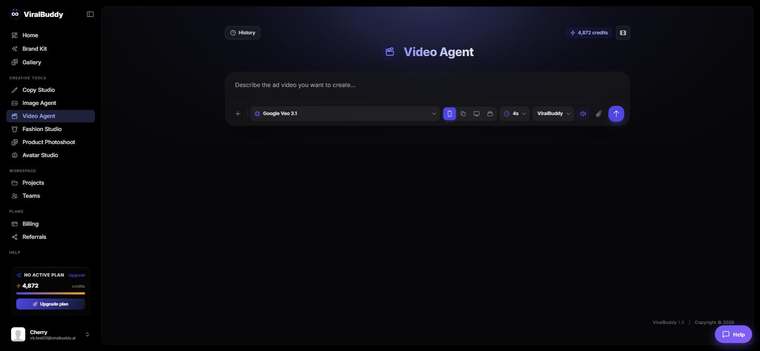
The Video Agent is ViralBuddy's text-to-video and image-to-video tool for ad creative. Describe the scene you want (or drop in a starting image), pick a model, and it generates a finished clip with motion, pacing and your Brand Kit carried through. Choose an aspect ratio — portrait for Reels and TikTok, square for feed, landscape for YouTube — and you get a ready-to-post video in minutes.
When to use it
Reach for the Video Agent whenever motion will out-perform a still:
- Short-form social ads — TikTok, Instagram Reels, YouTube Shorts, Facebook.
- Product teasers & launches that need energy a photo can't give.
- Hook variations — test five opening seconds fast before you spend on production.
- Animating a still — bring an existing image or product photo to life.
If you only need a still image, use the Image Agent. If you want a person speaking to camera, use Avatar Studio. For pure motion on a concept or product, the Video Agent is the fastest path.
Where to use the output
Because you set the aspect ratio, the same clip drops straight into wherever you publish:
- Paid social: TikTok, Meta/Instagram Reels, YouTube Shorts, Snapchat.
- Display & video: YouTube in-stream, Performance Max video assets.
- Owned: your website hero, product pages, email and landing pages.
How to use the Video Agent (step by step)
- Open the Video Agent from the Creative Tools menu. Open it here →
- Choose your starting point. Type a scene description, or upload a still to animate (image-to-video).
- Describe the motion. Be specific about action and camera — e.g. "slow push-in on a matte-black bottle, condensation glistening, soft morning light."
- Pick a model and aspect ratio for where it's going — portrait for Reels/TikTok, landscape for YouTube.
- Generate, then review in your Gallery. Regenerate or refine the prompt until the motion feels right.
- Download and ship — or send it to Avatar Studio's Ad Localizer to create language variants.
Pro tips
- Direct the camera. Words like "push-in", "orbit" or "static locked shot" change the whole feel.
- Keep the first second strong. The hook decides whether anyone watches the rest.
- Start from a great still. Image-to-video gives you more control — generate the frame in the Image Agent first, then animate it.
Frequently asked questions
Can I animate my own image? Yes — upload a still and the Video Agent brings it to life with image-to-video.
Will it stay on-brand? Your Brand Kit carries through, so colors and style stay consistent with the rest of your creative.
What sizes can I make? Portrait, square and landscape presets cover Reels/TikTok, feed and YouTube.
How much does it cost? Generations draw from your shared credit balance — the same pool every ViralBuddy tool uses.
Ready to make your first video? Open the Video Agent →
Comments (0)
Be the first to leave a comment.