The Image Agent is the tool you'll open most days. It turns a plain-English description into a polished, on-brand ad image — no designer, no stock library, no back-and-forth. This guide covers the four things that actually matter: what it is, when to reach for it, where the images belong, and how to use it start to finish.
What the Image Agent is
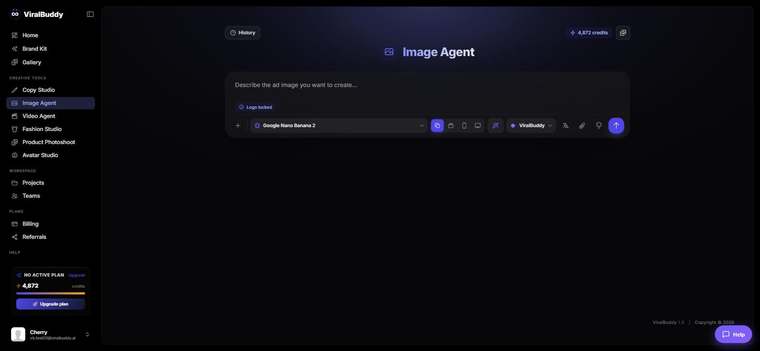
The Image Agent is ViralBuddy's text-to-image tool for ad creative. You describe the image you want, pick a model, and it generates a finished visual with your Brand Kit locked in — so colors, logo and style carry through automatically. You can attach a reference image to steer the look, and choose an aspect ratio (square, portrait or landscape) to match wherever the image is going.
When to use it
Reach for the Image Agent whenever you need a still image, fast. Typical moments:
- Social posts & ads — a scroll-stopping visual for Instagram, Facebook, LinkedIn or Pinterest.
- Display & retargeting banners in multiple sizes from one idea.
- Thumbnails & hero images for YouTube, blog posts or landing pages.
- Concepting — generating five directions in minutes before you commit.
If you need motion, use the Video Agent instead; if you need a real product photographed in a scene, use Product Photoshoot. For a plain still, the Image Agent is the fastest path.
Where to use the output
Because you control the aspect ratio, the same idea slots straight into wherever you're publishing:
- Paid social: Meta/Facebook & Instagram, TikTok, Pinterest, Snapchat.
- Display & search: Google Display, Performance Max asset groups.
- Owned: your website, product pages, email headers and blog covers.
How to use the Image Agent (step by step)
- Open the Image Agent from the Creative Tools menu. Open it here →
- Confirm your brand is locked in. With your Brand Kit set up, the agent keeps your colors, logo and style on every generation.
- Describe the image in plain words. Be specific about the subject, mood, and setting — e.g. "a matte-black water bottle on a sunlit kitchen counter, soft morning light, minimal, premium feel."
- (Optional) Add a reference image to guide composition or style, and pick a model if you want a specific look.
- Choose the aspect ratio for where it's going — square for feed, portrait for stories/reels, landscape for banners.
- Generate, then review in your Gallery. Regenerate or tweak the prompt until it's right, then download and ship.
Pro tips
- Be concrete. "Saves 10 hours a week" beats "saves time" — specifics guide the model.
- Describe the light. Naming the lighting ("soft morning light", "studio softbox") changes the whole feel.
- Iterate in small steps. Change one thing per generation so you learn what moved the result.
Frequently asked questions
Will the images match my brand? Yes — set up your Brand Kit once and the Image Agent keeps every generation on-brand automatically.
Can I use my own reference image? Yes. Attach a reference to steer composition, style or subject.
What sizes can I make? Square, portrait and landscape presets cover feed, stories/reels and banners.
How much does it cost? Generations draw from your shared credit balance — the same pool every ViralBuddy tool uses.
Ready to create your first image? Open the Image Agent →
Comments (0)
Be the first to leave a comment.